

If you’ve been waiting to edit professional-quality videos entirely on your iPhone, the wait is over. YouTube has officially rolled out the YouTube Create app to iOS users in more regions, bringing the power of advanced mobile editing to the Apple ecosystem.
In my latest video walkthrough, I dive deep into the 2026 update, showing you exactly how to transform raw footage into polished content using just your phone. From AI-powered noise removal to instant captions, here is the complete breakdown of what this app can do.
Why YouTube Create on iOS?
Previously an Android exclusive, YouTube Create is now available for iPhone users (iPhone XR and later, running iOS 17+). It bridges the gap between casual editing and professional desktop software, offering a suite of free tools designed specifically for the YouTube workflow—whether you are making Shorts or long-form videos.
You can check if the app is available in your country here: https://support.google.com/youtube/answer/13952912.
1. Getting Started & AI Video Generation

When you open the app, you are greeted with three ways to start a project:
- From Scratch: Import your own clips and photos.
- Edit with AI: Let the app auto-arrange your clips for you.
- Generate a Video (Google Veo): This is the game-changer for 2026. As I demonstrated with the “Giant Marshmallow Man” example in the video, you can now use generative AI to create unique background clips or b-roll from a simple text prompt.
2. The Cleanest Audio on Mobile
One of the biggest pain points for mobile creators is audio quality. YouTube Create solves this with the Audio Cleanup tool.
- How it works: Select your video clip, tap “Audio Cleanup,” and the app uses AI to identify and suppress background noise (like wind or traffic) while isolating your voice.
- Royalty-Free Library: You also get direct access to the YouTube Audio Library. This means thousands of copyright-safe songs and sound effects are available to drag and drop directly onto your timeline.
3. Auto-Captions in Seconds
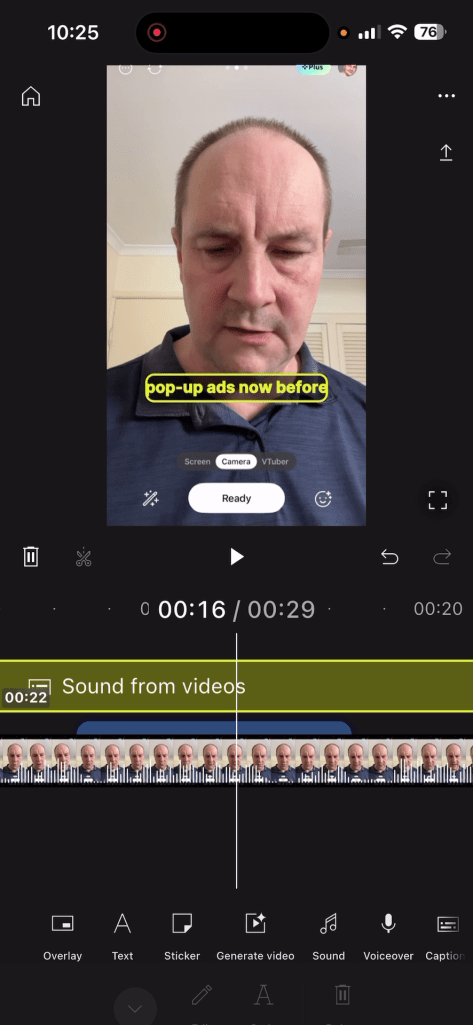
Accessibility is key for engagement, especially on Shorts. The built-in Captions tool automates what used to be a tedious process.
- One-Tap Generation: Select your video language, tap “Create,” and the app transcribes your audio into editable text overlays.
- Customization: You can easily edit the text to fix typos and change the style (font, color, background) to match your channel’s branding, just like I showed with the yellow “Bangers” font in the tutorial.
4. Professional Visual Tools
Beyond the basics of trimming and splitting, the app includes high-end features often reserved for paid software:
- Cut Out Tool: Remove the background of a video without a green screen, perfect for creating overlays or reaction videos.
- Overlays & Animation: Add images or videos on top of your main track and use keyframes to animate them across the screen.
- Filters & Effects: A wide range of filters and transitions (like dissolves and wipes) help add production value instantly.
Final Verdict
The YouTube Create app on iOS is a robust, free alternative to subscription-based editors like CapCut. It integrates seamlessly with your YouTube channel, allowing for direct uploads and easy project management.
Watch the full walkthrough video above to see every feature in action!
 Doug Hewson YT
Leave a comment