
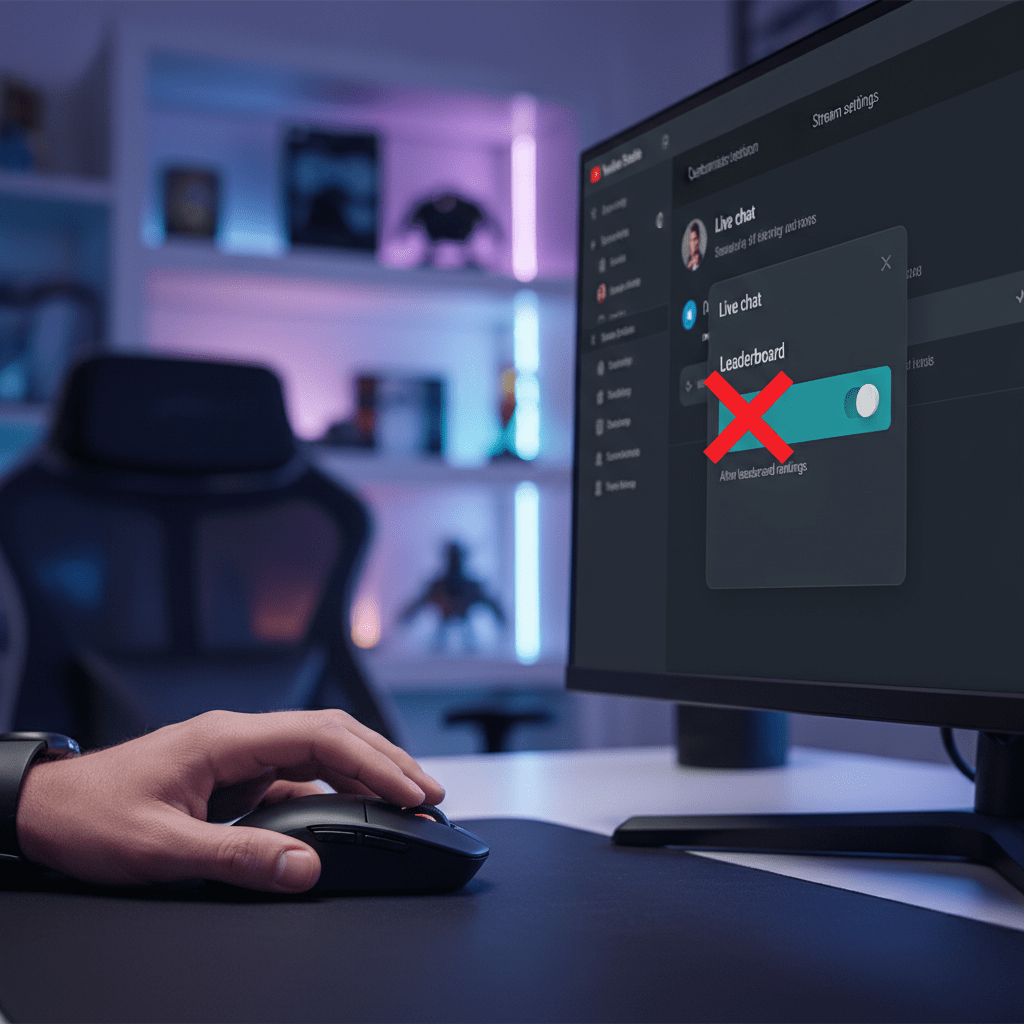
Are you a streamer or content creator on YouTube who uses the live chat feature? If so, you might have noticed a relatively new addition that displays a “Top Chatters” or “Live Chat Leaderboard” during your streams. While this can be a fun way to recognize active viewers, many creators prefer a cleaner, less competitive chat experience for their audience.
The good news is, YouTube now gives you the option to disable this live chat leaderboard! This highly requested feature puts the control back in your hands, allowing you to tailor the live chat experience to best suit your community and your content.
Why Disable the Leaderboard?
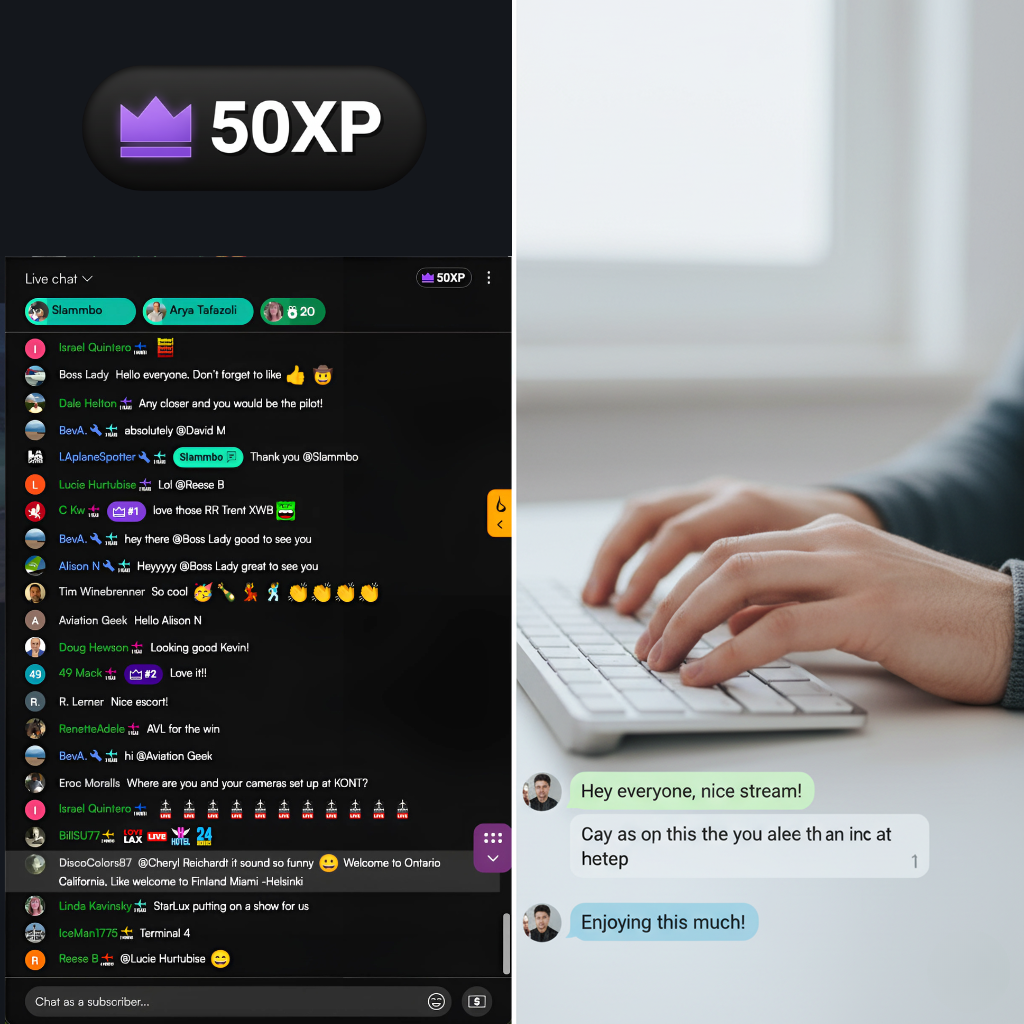
There are several reasons why you might consider turning off the live chat leaderboard:
- Focus on Content: For some creators, the leaderboard can be a distraction, drawing attention away from the live content itself or from organic conversation in the chat.
- Reduce Pressure: It might create an unintended sense of competition among viewers, which isn’t always conducive to a relaxed and inclusive community atmosphere.
- Cleaner Aesthetic: A simpler chat interface can look more professional and less cluttered, especially for streams where the visual experience is paramount.
How to Disable the Live Chat Leaderboard

Disabling the leaderboard is a straightforward process, whether you’re streaming from your desktop or directly from the YouTube mobile app. You’ll primarily be looking for this setting within your YouTube Studio.
For Desktop Streamers:
You’ll find the option within your live stream settings in YouTube Studio. Navigate to the “Customization” section for your stream, and then locate the “Live chat” settings. Here, you’ll see a checkbox for the “Leaderboard.” Simply uncheck this box!
For Mobile Streamers:
If you go live directly from the YouTube app on your mobile device, the setting is also available. When setting up your live stream, dive into the advanced settings. There, you’ll find a toggle labeled “Allow leaderboard rankings.” Turn this off, and you’re good to go!
Once you make this change, it will apply to your current and future streams (especially if you tend to reuse the same stream settings). This means a consistent, leaderboard-free experience for your viewers across all devices.
See It in Action!
Want a step-by-step visual guide on how to implement this change? My recent tutorial walks you through the entire process, making it incredibly easy to find and disable the live chat leaderboard on your YouTube streams.
Don’t miss out on taking full control of your live chat experience – Click here to watch the full tutorial now!
By customizing your live stream settings, you can ensure your YouTube channel offers the best possible experience for both you and your dedicated community. Happy streaming!
 Doug Hewson YT
Leave a comment