
As content creators, especially on YouTube, managing and organizing video content efficiently is crucial. Whether you’re taking notes from a live stream, adding timestamps to your own videos, or creating chapters to improve viewer engagement, having the right tools can make all the difference. One such powerful and versatile tool is the TubeSpanner Notes Tool. This article dives deep into how you can harness this tool to streamline your YouTube workflow, improve your productivity, and enhance your video content management.
Created and demonstrated by Doug Hewson YT, this guide will walk you through the step-by-step process of using the TubeSpanner Notes Tool, exploring its features, tips, and how it can transform your video note-taking and timestamping experience.
Step 1: Getting Started with the TubeSpanner Notes Tool
The first thing you need to do is install the TubeSpanner browser extension. This extension is available for Chrome, Firefox, and Edge browsers, making it accessible regardless of your preferred platform. Unfortunately, Safari users will have to wait as it’s not yet supported.
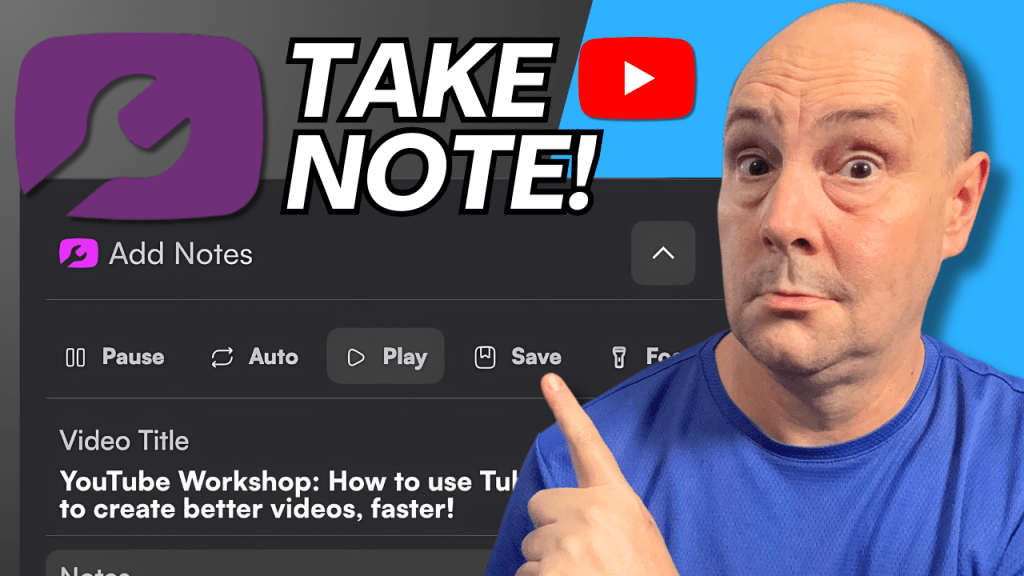
Once installed, the extension activates directly on your YouTube watch pages, presenting a floating notes window that you can move around your screen. This window is where all the magic happens — it automatically populates with the current video’s title and provides a space to jot down notes and timestamps.
This floating notes window is extremely handy because it allows you to watch the video while simultaneously taking notes without switching tabs or disrupting your workflow.
Step 2: Navigating and Using the Notes Tool Interface
When you open the notes tool by clicking the Add Notes tab, you’ll see a simple but powerful interface. Here’s what you can do:
- Auto Mode: This mode automatically plays the video while you take notes. It’s especially useful for Video on Demand (VOD) content.
- Playback Controls: Pause, play, rewind, and jump to different points in the video — even on live streams. This flexibility ensures you can capture the exact moment you want.
- Note Entry: Start typing your notes at any moment, and the tool will automatically timestamp the note at the exact point in the video when you begin writing.
For example, during a live stream or a replay, if you hear a key point or demonstration, you can immediately type a note, such as “Social Stream Ninja demo”, and TubeSpanner will lock in the timestamp for you. This feature eliminates the need to manually track timecodes, saving you heaps of time and effort.
Step 3: Taking Notes and Locking Timestamps Effectively
Taking notes with TubeSpanner is straightforward but powerful:
- Click the Add Notes tab to open the floating notes window.
- Start typing your note while the video is playing or paused.
- Press the Return/Enter key to lock in the timestamp for that note.
One neat feature is that while typing, the video will pause automatically if you have the auto mode enabled, allowing you to focus on writing without missing anything. Once you lock the note in, playback resumes.
Alternatively, if you prefer continuous playback while taking notes, you can keep the video playing and type your notes without pausing. This flexibility means you can choose the workflow that suits you best.
Step 4: Editing and Managing Your Notes and Timestamps
After adding notes, you might want to adjust titles or edit entries. TubeSpanner allows you to:
- Edit Video Title: Click on the title field to rename the video title in your notes. This is useful if the default YouTube title is too generic or you want to add context such as “Live Stream” or a specific topic.
- Edit Notes: You can click into any note to edit the text if you need to clarify or correct it.
- Delete Notes: If you accidentally create a note or timestamp, simply delete it and reposition yourself in the video to re-take the note accurately.
One important limitation to be aware of is that you cannot manually enter timestamps. You must capture timestamps by typing notes at the exact moment in the video you want to mark. This ensures accuracy but requires a bit of attentiveness when working with live content.
Step 5: Exporting Notes as YouTube Chapters
One of the most valuable features of TubeSpanner’s Notes Tool is the ability to export your notes as YouTube chapters. Chapters help viewers navigate through long videos, improving engagement and watch time.
When you finish taking notes and timestamps, simply click the Export as Chapters button at the bottom of the notes window. This action generates a text file formatted perfectly for YouTube chapter markers.
The exported file includes:
- The video title (which you can edit before exporting)
- A mandatory
00:00timestamp marking the start of the video - Subsequent timestamps with your notes as chapter titles
Doug recommends replacing the default “start of video” text with a more descriptive title, like the actual video title or topic, for a professional touch.
To use these chapters, just paste the exported text into your video description on YouTube. Make sure you have at least three chapters, each at least 10 seconds apart, to meet YouTube’s requirements for chapters.
Step 6: Viewing and Managing Past Notes in the TubeSpanner Dashboard
TubeSpanner doesn’t just save your notes locally in the browser extension. It also syncs everything to your TubeSpanner account on their web dashboard, providing you with a centralized place to manage all your notes and timestamps across videos.
On the dashboard, you can:
- View all your past notes and timestamps across multiple videos.
- Search through your notes to quickly find specific information.
- Open the original YouTube videos directly from the dashboard.
- Export notes and chapters again if needed.
- Delete old notes to keep your workspace clean.
This feature is especially useful for creators working with multiple clients or managing a large library of content. It provides a historical record of your annotations and timestamps, making it easier to create follow-ups or revisit important information.
Step 7: Exploring Additional TubeSpanner Features
While the Notes Tool is Doug’s favorite and most-used TubeSpanner feature, the platform offers a rich suite of tools designed to help YouTube creators with various aspects of channel management and growth:
- Milestone Achievements: Track your channel’s progress and celebrate important markers.
- Toolbox: Access AI-powered tools for title inspiration, script generation, thumbnail creation, and scheduling.
- Upload Assistant: Streamline your video uploads directly through TubeSpanner.
- Social Sharing: Easily promote your videos across different platforms.
- Content Calendar Planner: Organize your publishing schedule and plan ahead.
- Built-in AI Assistant (“Kim”): An intelligent AI that understands your channel and can help you optimize content and strategy.
These features make TubeSpanner a comprehensive productivity suite that goes far beyond note-taking and timestamping.
Step 8: Discovering the New “Home Run” Beta Tool for Video Optimization
Recently, TubeSpanner introduced a brand new beta feature called Home Run. This tool is focused on video optimization and search, offering creators cutting-edge capabilities to improve discoverability and performance on YouTube.
Accessible from the TubeSpanner extension and website, Home Run provides a range of options designed to help you optimize your videos for maximum reach. While still in beta, it’s a promising addition to the already robust TubeSpanner toolkit.
If you’re serious about growing your YouTube channel, this feature is definitely worth exploring alongside the Notes Tool.
Step 9: Getting Started with TubeSpanner Today
If you’re ready to revolutionize your YouTube workflow, here’s how to get started:
- Download the TubeSpanner browser extension for your preferred browser (TubeSpanner Browser Extensions).
- Create a TubeSpanner account and log in to sync your notes and access the web dashboard.
- Start taking notes and timestamps while watching YouTube videos using the floating notes window.
- Export your notes as chapters and add them to your video descriptions to improve engagement.
- Explore additional TubeSpanner tools to optimize your channel, manage uploads, and plan content.
TubeSpanner offers a free trial, so you can test the features without commitment. Paid plans are flexible with no contracts, allowing you to pay monthly or annually.
Conclusion: Why TubeSpanner is a Must-Have Tool for YouTube Creators
The TubeSpanner Notes Tool is an incredibly handy, time-saving tool that has become an essential part of my weekly workflow. It’s perfect for creators who want to:
- Take detailed, timestamped notes on live streams and VODs.
- Create accurate, professional YouTube chapters to improve viewer experience.
- Organize and manage notes across multiple videos and clients.
- Leverage AI and other productivity tools to streamline channel management.
Whether you’re preparing content, reviewing live streams, or managing large amounts of video data, TubeSpanner simplifies the process and keeps everything organized in one place.
If you want to boost your YouTube productivity and content quality, I highly recommend giving TubeSpanner a go. Unlock the free trial, explore the features, and see how it can transform your video note-taking and channel management.
For more tips, tutorials, and tools for YouTube creators, stay tuned for future updates and deep dives into the TubeSpanner suite and other essential creator resources.
Happy creating!
Made with VideoToBlog using Create PERFECT Notes and Timestamps FAST with TubeSpanner!
 Doug Hewson YT
Leave a comment